Spring Data JPA User's Guide for Altibase#
Introduction#
This guide demonstrates how to connect to Altibase Server using Spring Data JPA with Spring Boot project on STS (Spring Tool Suite).
JPA and Spring Data JPA#
JPA (Java Persistence API) is a J2EE specification for ORM (Object-Relational Mapping), an interface defining how to use the relational database in java application. Several implementations of JPA are available such as Hibernate, EclipseLink and DataNucleus. Spring Data JPA is a module provided by Spring which abstracts JPA implementations therefore makes it easier to use JPA.
This guide is written based on the versions below.
- Spring Tool Suite 4.14.1
- Spring Boot 2.7.0
- Java 17
- Altibase Server and JDBC Driver Version 7.1.0.7.5
Info
For errors and improvements related to this document, please contact the technical support portal or technical support center.
- Technical support portal: http://support.altibase.com/en
- Technical support center: +82-2-2082-1114
Info
This document is provided for informational purposes only and is subject to change without prior notice. It may contain errors, and Altibase makes no express or implied warranties of any kind, including but not limited to warranties of merchantability or fitness for a particular purpose.
The development, release, and timing of any features or functionality described for Altibase products in this document are at the sole discretion of Altibase.
Altibase may hold patents, trademarks, copyrights, or other intellectual property rights related to the contents of this document.
Create Spring Data JPA Project with Spring Boot#
1. Create Spring Boot Project#
Click File -> New -> Spring Starter Project and fill in the project information such as name, group and package. Then, click Next.

2. Add Spring Starter Project Dependencies#
Spring Starter Project Dependencies is a set of essential libraries required to use certain features in Spring Boot. Select Spring Data JPA and add Lombok to write the sample code easier.

3. Click Finish#
When Finish button is clicked, Progress is enabled and relevant libraries are downloaded. After creating the project, the user can see the dependency libraries are added in build information file. The image below shows an example of Maven type's project, pom.xml.

Add Altibase Dialect Class File#
Spring uses Hibernate as the default JPA vendor. However, since Hibernate does not provide Dialect class for Altibase, the user has to manually compile and add to hibernate-core library.
1. Download Altibase Dialect Java Source#
Download the appropriate Altibase Dialect Java Source according to the Hibernate version.
./AltibaseDialect.java
./AltibaseLimitHandler.java
./SequenceInformationExtractorAltibaseDatabaseImpl.java
2. Check hibernate-core Library File Path#
- Maven project: Located in $HOME/.m2/repository
$ $HOME/.m2/repository/org/hibernate/hibernate-core/x.x.x.Final/hibernate-core-x.x.x.Final.jar
- Gradle project: Located in $HOME/.gradle/caches/modules-2/files-2.1
$ $HOME/.gradle/caches/modules-2/files-2.1/org.hibernate/x.x.x-Final/hash_value_of_the_library_file/hibernate-core-x.x.x.Final.jar
3. Decompress hibernate-core-x.x.x.Final.jar File#
Decompress hibernate-core-x.x.x.Final.jar file in the directory where Altibase Dialect Java Source is located.
jar xvf hibernate-core-x.x.x.Final.jar
4. Compile Altibase Dialect Files#
Compile Altibase Dialect files in the following order.
javac -d . -cp . SequenceInformationExtractorAltibaseDatabaseImpl.java
javac -d . -cp . AltibaseLimitHandler.java
javac -d . -cp . AltibaseDialect.java
5. Check if the Class File is created#
When successfully compiled, the class files as follows are created under the current directory.
./org/hibernate/tool/schema/extract/internal/SequenceInformationExtractorAltibaseDatabaseImpl.class
./org/hibernate/dialect/pagination/AltibaseLimitHandler.class
./org/hibernate/dialect/AltibaseDialect.class
6. Delete Altibase Dialect Java Source (*.java)#
Delete or move *.java files to another directory so Altibase Dialect Java source is not included in the jar file.
7. Create hibernate-core-x.x.x.Final.jar File#
Recreate hibernate-core-x.x.x.Final.jar file.
jar -cvfm hibernate-core-x.x.x.Final.jar META-INF/MANIFEST.MF .
8. Copy and Paste hibernate-core-x.x.x.Final.jar File#
Copy and paste the created JAR file to the library path from instruction #2.
Altibase JDBC Driver Setting#
Prepare Altibase JDBC Driver#
Download the Altibase JDBC driver to the path of user's choice. Altibase JDBC driver is Altibase.jar and this file exists in the lib directory where Altibase server is installed.
Add Altibase JDBC Driver File#
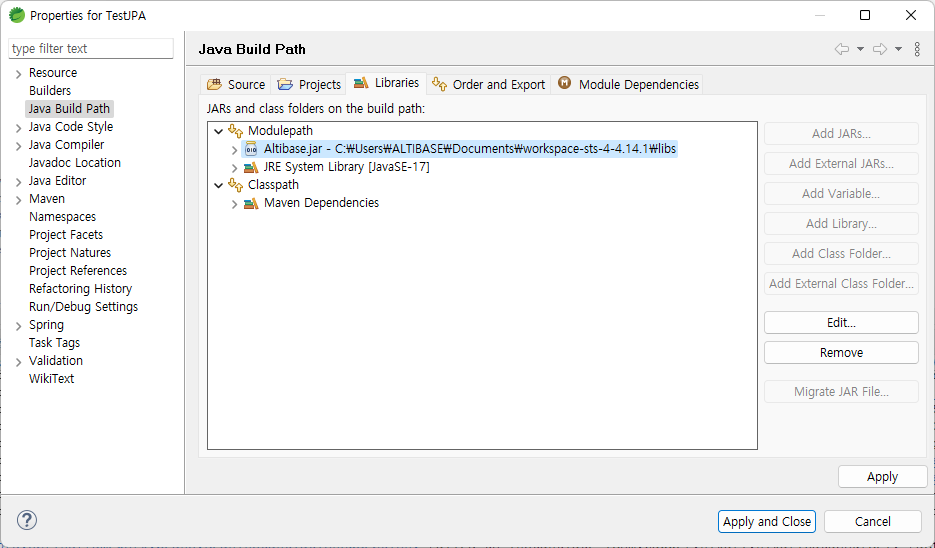
Click Project -> Properties -> Java Build Path -> Libraries -> Add External JARs and add Altibase JDBC driver file.
Create Sample Code#
Create sample code to check the connection with Altibase Server.
Configure application.properties#
Add Altibase server connection information to the src/main/resources/application.properties file.

# Altibase DB
# Altibase JDBC Driver Class Name : Altibase.jdbc.driver.AltibaseDriver
# Altibase Server URL : jdbc:Altibase://db_ip:db_port/db_name
spring.datasource.driver-class-name=Altibase.jdbc.driver.AltibaseDriver
spring.datasource.url=jdbc:Altibase://172.16.135.35:20300/mydb
spring.datasource.username=sys
spring.datasource.password=manager

# to avoid isValid() error in Hikari CP
spring.datasource.hikari.connection-test-query=select 1 from dual

#JPA/Hibernate
spring.jpa.database-platform=org.hibernate.dialect.AltibaseDialect
spring.jpa.hibernate.ddl-auto=create
spring.jpa.show-sql=true
Create Package to write Sample Code#
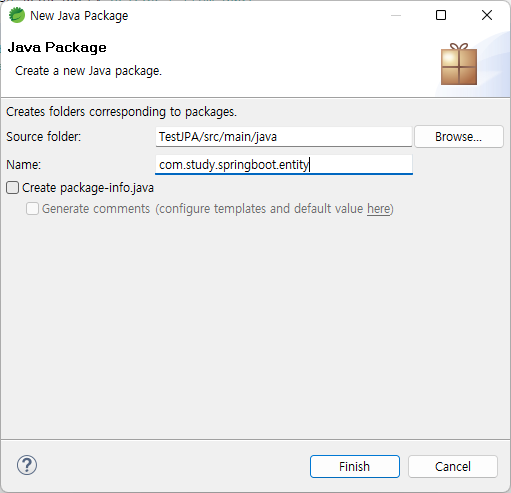
Click New -> Package and create entity package.
Create Class#
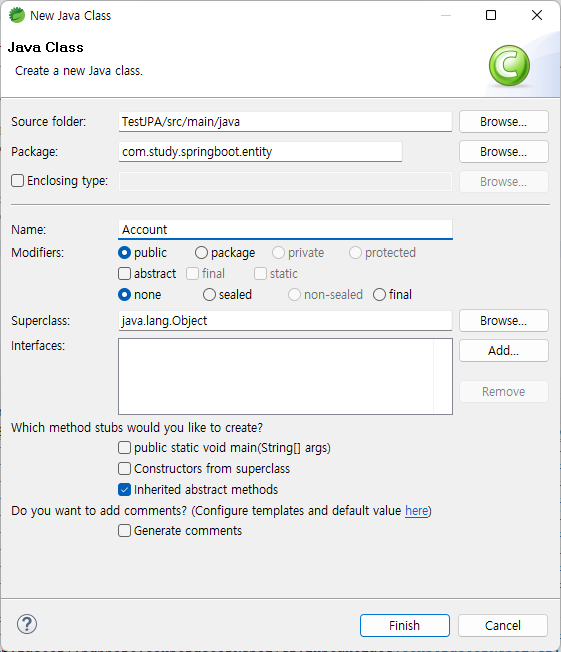
Click New -> Class in the entity package created earlier and create a class named Account.
Write Sample Code#
Write the following code in the Account class.

package com.study.springboot.entity;

import javax.persistence.Column;
import javax.persistence.Entity;
import javax.persistence.Id;

import lombok.AccessLevel;
import lombok.AllArgsConstructor;
import lombok.Builder;
import lombok.Getter;
import lombok.NoArgsConstructor;
import lombok.Setter;

@Entity
@Getter @Setter
@NoArgsConstructor(access = AccessLevel.PROTECTED)
@AllArgsConstructor
@Builder
public class Account {
   @Id
    private Long id;

    @Column(unique=true)
    private String username;

    @Column
    private String password;
}
Check the Connection with Altibase Server#
Click Start#
Select the project in the Boot Dashboard and click (Re)Start.

Check the Result#
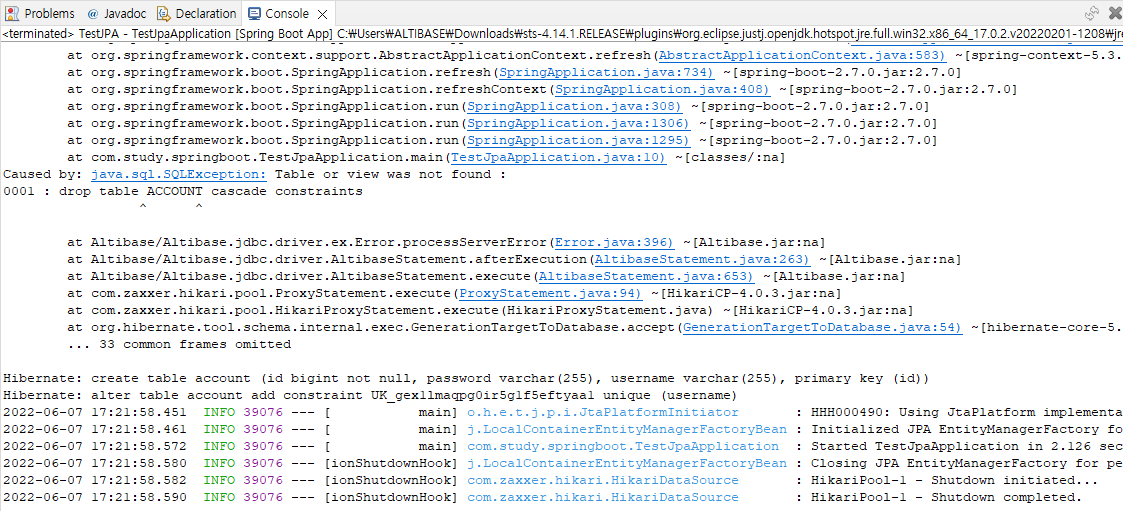
Check the result in the console.
Check if the Table is created#
Connect to Altibase server with iSQL and check if the table is created.
iSQL> desc account;
[ TABLESPACE : SYS_TBS_MEM_DATA ]

[ ATTRIBUTE ]
------------------------------------------------------------------------------

NAME                                     TYPE                        IS NULL
------------------------------------------------------------------------------

ID                                       BIGINT          FIXED       NOT NULL
PASSWORD                                 VARCHAR(255)    VARIABLE
USERNAME                                 VARCHAR(255)    VARIABLE

[ INDEX ]
------------------------------------------------------------------------------

NAME                                     TYPE     IS UNIQUE     COLUMN
------------------------------------------------------------------------------

UK_GEX1LMAQPG0IR5G1F5EFTYAA1             BTREE    UNIQUE        USERNAME ASC
__SYS_IDX_ID_173                         BTREE    UNIQUE        ID ASC

[ PRIMARY KEY ]
------------------------------------------------------------------------------

ID